

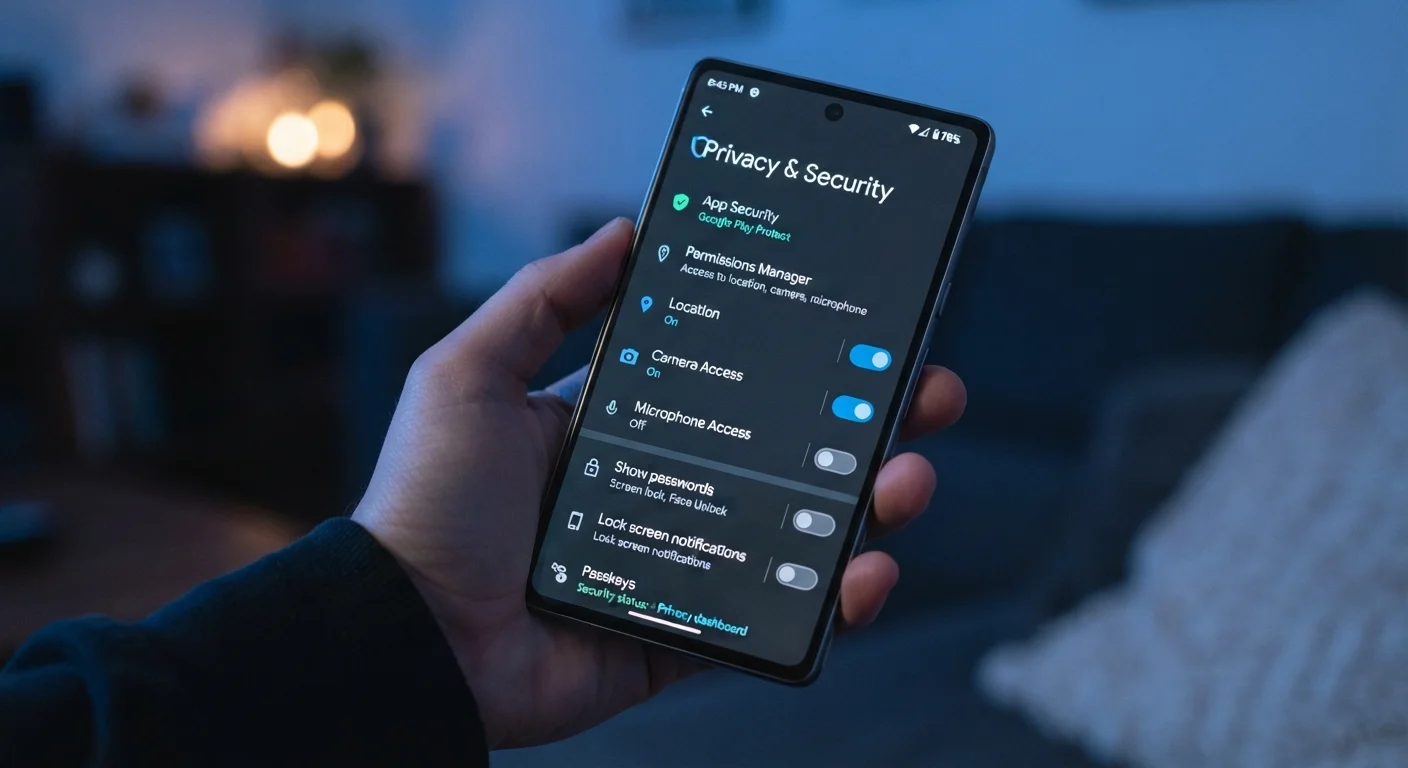
Key Takeaways
- Default settings on phones, browsers, and social platforms are often configured for data collection, not user protection.
- Location history, ad tracking, and activity logs can usually be disabled without losing core functionality.
- Social media privacy controls are more granular than most users realise, covering audiences, data exports, and connected apps.
- Browser settings for DNS, cookie handling, and permissions go untouched by most people but are straightforward to adjust.
- Reviewing these settings once takes under an hour and does not require technical expertise.
Why default settings work against you
When you set up a new device or create an account, the default configuration is rarely chosen with your privacy in mind. Manufacturers and platforms benefit from data collection, so out-of-the-box settings tend to leave most sharing options on. The good news is that changing them is usually a matter of flipping a toggle, not reconfiguring anything complicated.
The settings below are commonly overlooked because they are buried in submenus or described in vague language that does not signal their significance. None of them require technical skill to adjust. For a broader review of your overall digital footprint, the personal privacy audit checklist covers passwords, app permissions, and browser behaviour in one session.
Location history on your smartphone
Both Android and iOS collect a log of places you have been, separate from granting individual apps location access. On iOS, this is called Significant Locations and sits under Settings > Privacy and Security > Location Services > System Services. On Android, it lives in Google account settings under Location History (now called Timeline). Neither is on because you explicitly asked for it.
Turning it off stops the device from building a movement record. You can also delete the existing history from the same menu. Individual app location permissions are a related but separate issue, covered in the app permissions guide.
Your phone logs where you have been even when no app is actively using your location.
Ad tracking identifiers
Every smartphone carries an advertising ID, a code that lets apps and ad networks link your activity across different apps. On iOS, Apple introduced App Tracking Transparency, which prompts apps to ask permission before accessing this ID. If you skipped those prompts, go to Settings > Privacy and Security > Tracking to review what you allowed.
On Android, open Settings > Privacy > Ads and select Delete advertising ID (available on Android 12 and later) or opt out of personalised ads on earlier versions. This does not reduce the number of ads you see, but it breaks the cross-app profile that advertisers build about you.
Deleting your advertising ID disconnects the cross-app profile advertisers build from your behaviour.
Browser permissions for notifications and sensors
Browsers accumulate a list of sites you have granted permissions to: notifications, camera, microphone, and location. Most people grant these during a moment of need and never revisit them. In Chrome, go to Settings > Privacy and Security > Site Settings to see every active grant. Firefox and Safari have equivalent menus under Preferences > Privacy and Security.
Notification permissions are worth auditing especially carefully. Rogue or low-quality sites can send push notifications that look like system alerts. Revoking permissions for sites you no longer use or recognise takes seconds. For more on what browsers expose by default, what incognito mode actually does explains the gaps that most users miss.
Browser notification permissions accumulate silently and can be exploited by low-quality or deceptive sites.
Connected apps on social accounts
Facebook, Google, Instagram, and similar platforms let third-party apps and services log in using your account. Over time, this list grows with apps you no longer use, and each connected app retains whatever data access you originally granted. On Facebook, check Settings > Security and Login > Apps and Websites. On Google, visit myaccount.google.com and open Third-party apps with account access.
Remove anything you do not recognise or no longer actively use. A connected app that you abandoned two years ago may still be pulling profile data, and you have no visibility into how it stores or uses that information.
Abandoned third-party app connections continue pulling your profile data long after you stop using them.
Activity controls on search and streaming platforms
Google, YouTube, and most streaming services keep a detailed log of your search and watch history. This data feeds their recommendation algorithms, but it also builds a long-term profile. In your Google account, under Data and Privacy > History settings, you can pause web and app activity, location history, and YouTube history independently. You can also set auto-delete to remove data older than 3, 18, or 36 months automatically.
Streaming platforms such as Netflix and Spotify have similar viewing and listening history controls, usually under account settings. Clearing or pausing these does change your recommendations, but that trade-off may be worthwhile depending on how you feel about the profile being maintained.
Auto-delete settings on Google account history let you cap how far back your activity log reaches.
Social media audience controls beyond 'public' vs. 'private'
Most social platforms offer privacy controls far more specific than a binary public-or-private switch. On Facebook, individual posts, your friends list, your phone number, and your email address can each have separate audience settings. On Instagram, you can restrict who can send you direct messages without fully blocking someone. On LinkedIn, profile visibility to search engines is a separate toggle from your general account visibility.
These granular controls are worth reviewing because platforms sometimes reset them after a policy change or app update. The social engineering explainer is relevant here: public profile details are frequently used in targeted phishing and impersonation attempts.
Platform updates sometimes silently reset audience controls you previously configured.
DNS settings on your home network and browser
The Domain Name System (DNS) is the address book that translates website names into IP addresses. By default, your internet provider handles DNS lookups and can log which sites you visit. Switching to a privacy-respecting DNS resolver, such as one that uses encrypted DNS-over-HTTPS (DoH), prevents your provider from seeing that data in plain text.
Modern browsers let you enable DoH directly in their settings without touching your router. In Chrome, go to Settings > Privacy and Security > Security > Use secure DNS. Firefox has the same option under Preferences > Privacy and Security > DNS over HTTPS. This change does not affect your browsing speed in any noticeable way for most users.
Switching to encrypted DNS prevents your internet provider from logging every site you visit by name.
Making it a habit
Privacy settings are not a one-time fix. Apps update, platforms revise their data policies, and new permissions appear after software updates. Checking these areas every few months takes less time than the first pass, since you are only looking for what has changed.
If you want to go further, managing app permissions without locking everything down explains how to handle per-app access on Android and iOS without breaking functionality. For a deeper look at how websites track you beyond cookies, cookies, trackers, and fingerprinting is worth reading alongside this guide.
Start with one device at a time
Trying to review every platform and device in a single session can feel overwhelming and leads to rushed decisions. Pick your smartphone first, since it combines location data, ad tracking, and app permissions in one place. Once those are set, move to your primary browser, then social accounts. Spacing it across a couple of short sessions makes the process more thorough.