

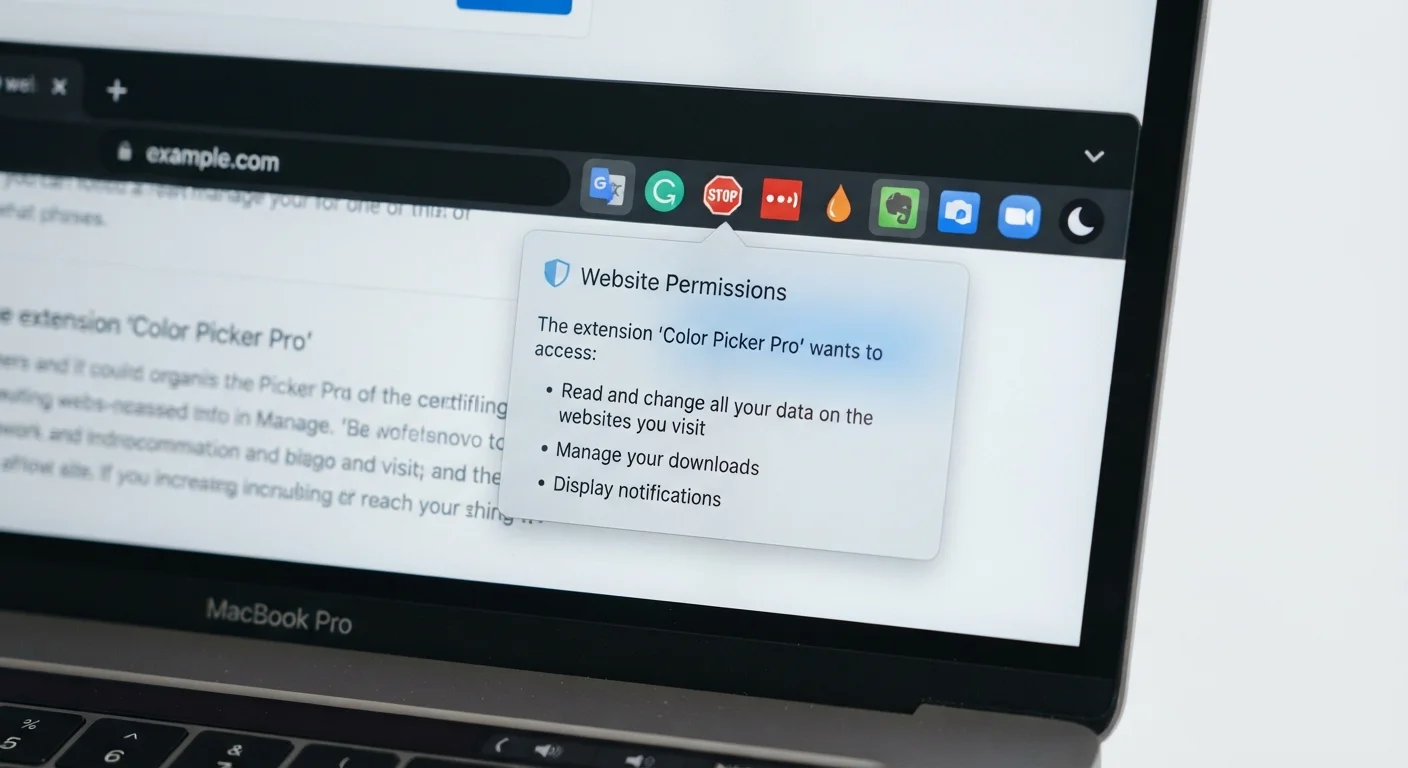
Key Takeaways
- Many extensions request access to all website data, far beyond what their stated function requires.
- Permissions like 'read and change all your data on websites you visit' grant broad, ongoing access to sensitive information.
- Regularly auditing installed extensions reduces your exposure to data collection and malicious code.
- An extension's origin, update history, and user count are useful signals when evaluating trustworthiness.
- Removing unused extensions is one of the simplest privacy improvements available to any browser user.
What browser extensions actually ask for
When you install a browser extension, a permissions dialog appears listing what the extension needs to function. Most people click through it without reading. That habit has real consequences.
Permissions vary widely. Some extensions ask only for access to a single website or a specific browser feature. Others request permission to 'read and change all your data on the websites you visit,' which means the extension can see every page you load, including banking pages, email, and forms where you type passwords. It can also modify what those pages show you.
Browsers use standardized permission language, but the descriptions can sound abstract. 'Access your data for all websites' and 'read browsing history' are not minor housekeeping requests. They give an extension continuous visibility into your online activity. Understanding what each permission actually enables is the starting point for evaluating whether an extension is worth installing.
For a broader view of how your browsing behavior gets tracked and profiled, see how cookies, trackers, and fingerprinting work.
Why extensions often ask for more than they need
Developers sometimes request broad permissions because it is easier than scoping access precisely. Requesting access to all sites once avoids having to update permissions later if the extension expands. This is a convenience choice for the developer, not a necessity.
In other cases, the mismatch between function and permissions is intentional. Extensions that started as legitimate tools have been purchased by data brokers or ad networks and updated to quietly collect user data. Because the original extension had broad permissions, the new owner can begin harvesting browsing history without prompting users to re-approve anything.
This pattern has been documented repeatedly. A spell-checker, PDF converter, or coupon tool that worked fine for years can become a data-collection instrument after a quiet ownership change. The extension still functions as advertised, so users have no obvious reason to remove it.
This is similar to the data profile problem described in how search engines build a profile from your queries: small pieces of access accumulate into something substantial.
How to evaluate an extension before installing it
The permissions screen is not the only signal worth reading. Before installing, check the extension's page in your browser's official store. Look at who publishes it: a named company with a public website is easier to hold accountable than an anonymous developer handle. Check when the extension was last updated and how many users have it. An extension with millions of users and regular updates has more scrutiny on it than one with a few hundred installs and no updates in two years.
Read recent reviews, specifically looking for complaints about unexpected behavior after an update. Search the extension name alongside words like 'privacy' or 'data collection' to find any outside reporting.
Once installed, revisit the extension's permissions periodically. In Chrome, go to chrome://extensions and click Details for each one. In Firefox, find the same information under Add-ons and Themes. You can often change a broad 'on all sites' permission to 'on click' or restrict it to specific domains, which limits what the extension can see without breaking its function.
Pairing this habit with a broader privacy review is worthwhile. The personal privacy audit checklist covers extensions alongside passwords, app permissions, and browser settings in one structured session.
Practical steps for managing existing extensions
Auditing what is already installed is often more useful than being careful about new installs. Over time, most users accumulate extensions they no longer actively use.
For extensions you decide to keep, check whether you can restrict their site access. Changing 'on all sites' to 'on specific sites' or 'on click' is available for many extensions without affecting their core function. A translation tool, for example, does not need to run on every page you visit; you can set it to activate only when you click its icon.
The same principle that applies to phone apps applies here. Managing app permissions without locking everything down covers this balance well: the goal is not to grant nothing, but to grant only what is genuinely needed.
Extensions that handle sensitive tasks, like password management or security scanning, often do require broad access by design. For those, the question is whether the developer is reputable and transparent about what data it collects. A clear, readable privacy policy that explicitly states the extension does not sell or share browsing data is a meaningful signal, though not a guarantee.