

Key Takeaways
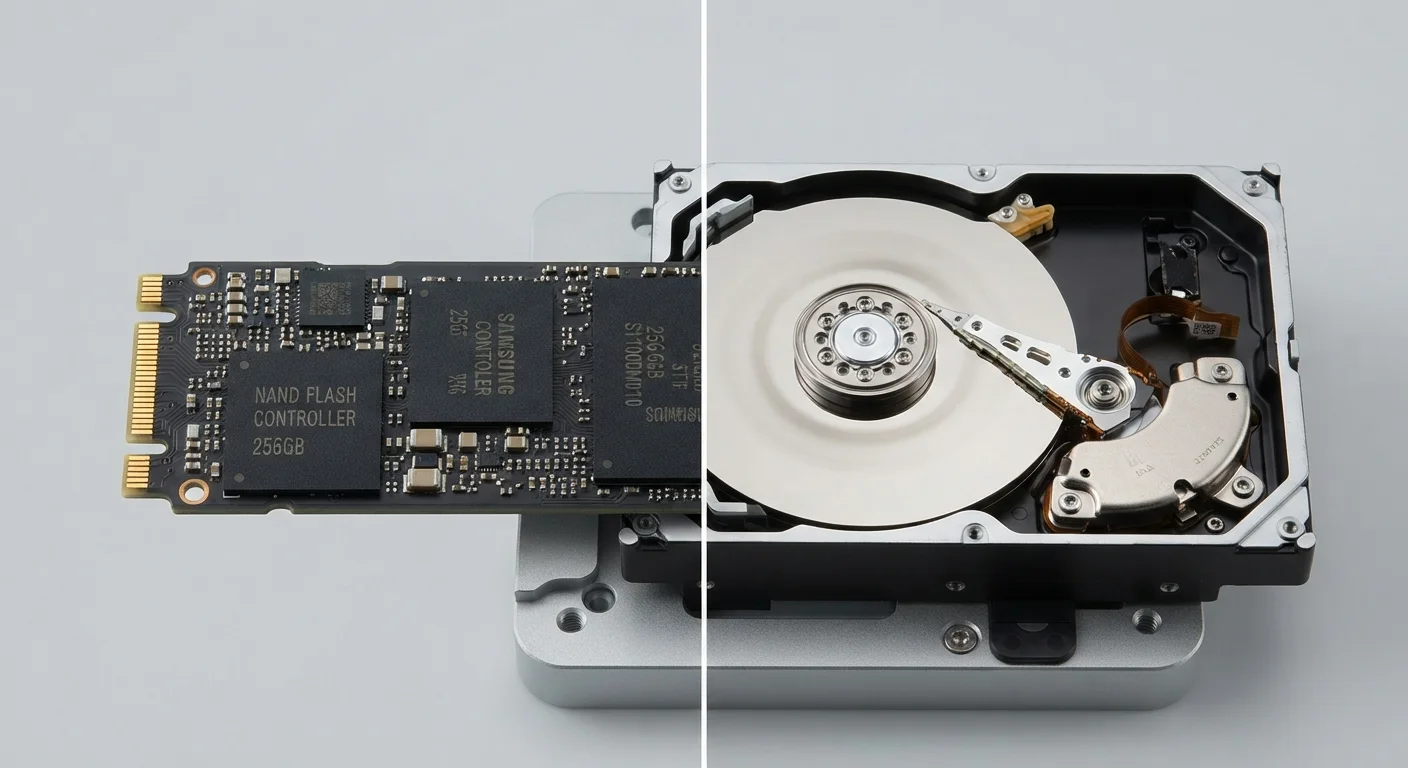
- SSDs store data on flash memory chips with no moving parts; HDDs use spinning magnetic platters.
- SSDs are significantly faster at reading and writing data, which affects everyday laptop speed noticeably.
- HDDs generally offer more storage capacity for less money, making them common in external backup drives.
- SSDs are more resistant to physical shock because they have no mechanical components that can jar loose.
- Most new laptops ship with SSDs, but HDDs remain common in desktop towers and external drives.
Option A
SSD (Solid-State Drive)
The fast, silent, and increasingly standard choice.
Best for: Users who want quick boot times, snappy app launches, and a durable drive for everyday laptop use.
Option B
HDD (Hard Disk Drive)
The high-capacity, lower-cost option with moving parts.
Best for: Users storing large files like video archives or backups where raw capacity per dollar matters most.
If you want a faster, more responsive everyday laptop
SSD (Solid-State Drive)
An SSD cuts boot times and app load times dramatically compared to an HDD. For daily work, browsing, and multitasking, the difference is immediate and consistent.
If you need to store a large video or photo archive cheaply
HDD (Hard Disk Drive)
HDDs offer significantly more gigabytes per dollar than SSDs. For files that sit in storage rather than being accessed constantly, an external HDD is a cost-effective solution.
If you carry your laptop in a bag frequently
SSD (Solid-State Drive)
Because an SSD has no moving parts, bumps and drops are far less likely to cause data loss. An HDD's read head can crash against the platter if the drive receives a hard impact while spinning.
If you are building or upgrading a desktop for bulk local backups
HDD (Hard Disk Drive)
Desktop towers can house large-capacity HDDs at a fraction of the cost of equivalent SSD storage. For infrequently accessed backup data, the slower speed is an acceptable trade-off.
How each drive actually stores your data
A hard disk drive stores data on circular magnetic platters that spin at speeds between 5,400 and 7,200 revolutions per minute. A tiny read/write head moves across the platter surface to find and record data, much like a record player needle on vinyl. Because the head must physically travel to each piece of data, finding scattered files takes measurable time.
A solid-state drive has no spinning parts at all. It stores data as electrical charges in flash memory cells, the same basic technology inside a USB thumb drive. The drive's controller can retrieve any cell almost instantly because there is no head to move. That is where the speed advantage comes from: pure electronics versus mechanical movement.
This physical difference shapes nearly every other characteristic that separates the two drives.
Speed: what you notice day to day
The speed gap between an SSD and an HDD shows up immediately in normal use. A laptop with an SSD typically boots Windows or macOS in under 20 seconds. The same laptop fitted with an HDD often takes a minute or more to reach the desktop, because the operating system loads thousands of small files scattered across the platter.
Opening large applications, switching between programs, and loading project files all feel faster on an SSD. The performance difference is not subtle on typical consumer hardware.
500+ MB/s
Typical SSD sequential read speed
A standard SATA SSD reads data at roughly 500 MB/s; NVMe SSDs common in recent laptops reach 3,500 MB/s or higher.
~100 MB/s
Typical HDD sequential read speed
Consumer HDDs running at 7,200 RPM generally peak near 100-160 MB/s for sequential reads under ideal conditions.
5x to 50x
Random access speed advantage of SSD over HDD
For small, random file reads (the kind an OS performs constantly), SSDs are many times faster than HDDs due to the absence of seek time.
For tasks that read or write large sequential files, such as copying a movie file, the gap is smaller than it is for tasks that access many small files in no particular order. HDDs handle long sequential reads reasonably well; they struggle with the fragmented, random access that a busy operating system constantly demands.
Durability, noise, and heat
Because an HDD contains spinning platters and a moving read head, physical shock is a real risk. A laptop dropped while the drive is spinning can cause the head to scratch the platter, corrupting or destroying data in that area. Most modern laptops include a motion sensor that parks the HDD head before impact, but the protection is not perfect.
An SSD produces no vibration and almost no heat during normal operation. It makes no sound. An HDD produces a faint hum from the spinning motor and a soft clicking sound as the head seeks data. In a quiet room or when using a thin laptop, this noise is noticeable.
Heat from an HDD is modest but real, and fans must work slightly harder to compensate, which can reduce battery life marginally compared to running an SSD under the same workload.
SSD lifespan and write endurance
Every flash memory cell in an SSD can only be written to a finite number of times before it degrades. Manufacturers rate this as TBW (terabytes written). For typical home or office use, the rated lifespan of a modern consumer SSD is well beyond what most users will reach in several years of normal operation. Lifespan is not a practical concern for general users, though write-intensive workloads like frequent large video exports are worth factoring in if you are choosing storage for a professional workflow.
Capacity, cost, and where each type fits
HDDs remain competitive on one metric: cost per gigabyte. A 4 TB external HDD costs a fraction of what 4 TB of SSD storage would. For bulk backup storage that sits on a desk and is not carried around, that math still favors the HDD.
SSDs have dropped in price significantly over the past decade. A 512 GB or 1 TB SSD is now standard in most new consumer laptops, and pricing has become affordable enough that HDD-equipped laptops are rare in mainstream retail. The gap persists at very high capacities (4 TB and above), where SSDs remain considerably more expensive.
| Criterion | SSD | HDD |
|---|---|---|
| How data is stored | Flash memory cells, no moving parts | Spinning magnetic platters with read head |
| Typical read speed | 500 MB/s to 7,000 MB/s | 80 MB/s to 160 MB/s |
| Boot time (typical laptop) | Under 20 seconds | 45 seconds to 2 minutes |
| Shock resistance | High (no mechanical parts) | Lower (moving head can crash) |
| Noise | Silent | Audible hum and clicking |
| Cost per gigabyte | Higher, especially at large capacities | Lower, especially above 2 TB |
| Common use today | Standard in new laptops | External backup drives, desktop towers |
Both drive types can fail over time. HDDs fail mechanically when motors, heads, or platters degrade. SSDs have a finite number of write cycles per cell, though the practical lifespan for typical home and office use is measured in years and is not a concern for most users. Regular backups protect against failure regardless of which type you use.